Copies what Finder misses
Permissions, ownership, symlinks, special files and sparse files come across intact, so the copy behaves like the original.
Free backup software for macOS: incremental snapshots, direct clones, and scheduled backups — no subscription, no account.
Permissions, ownership, symlinks, special files and sparse files come across intact, so the copy behaves like the original.
Hard-links reuse unchanged files, letting you keep dozens of restore points on a single SSD while still browsing them like full clones.
Schedule a backup and walk away. If the destination disk isn’t connected, the job waits and starts the moment you plug it in—then a notification reports the result.
Released 30 July 2026. Mac Backup Guru is actively developed; this is the current release.
Bootable copies are still possible, but Apple’s Signed System Volume changed the rules: cloning alone no longer produces a bootable disk, because Apple only trusts a system volume written by its own installer. The dependable route is to install macOS onto the external drive first (Install Disk Creator helps here), then bring your apps, settings, and documents across with Mac Backup Guru. Follow the step-by-step bootable backup guide — last reviewed June 2026.
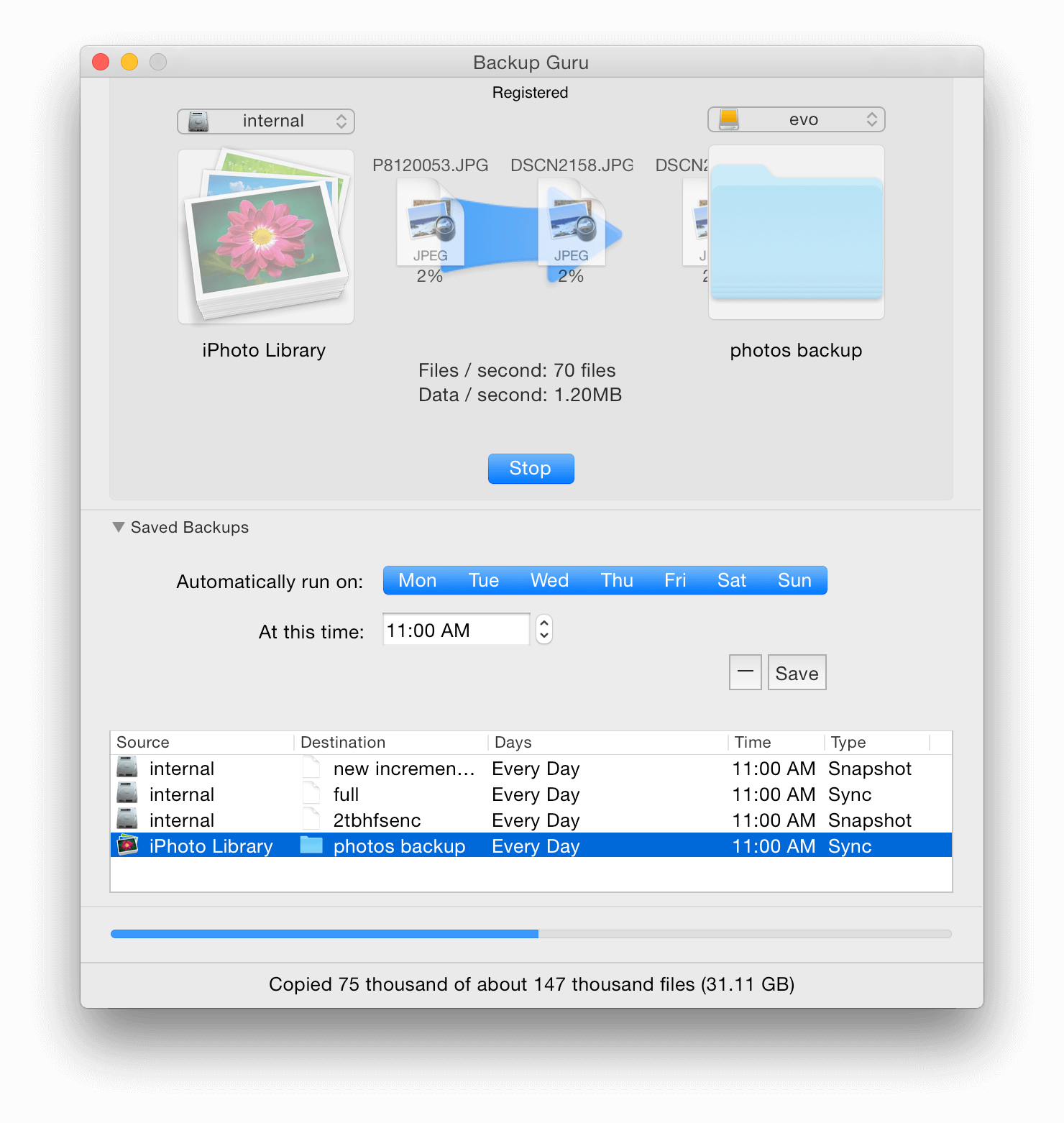
Mac Backup Guru creates clones and incremental snapshots. The original guides are still available: the quick visual guide, the full product manual, and the archived comparison of the Mac App Store and full website editions. The latest build is always MacBackupGuru.zip.
Create a byte-for-byte copy of any volume. The engine handles very large volumes, complex ACLs, and system files that Finder copies usually miss. For a copy you can boot from on modern macOS, follow the installer-first workflow.
Update an existing clone in a fraction of the time. Only the files that changed are written, and anything else on the destination disk stays untouched.
Snapshots behave like full clones but reuse unchanged files with hard links. A 500 GB source can keep months of restore points on a 2 TB drive while each run only adds the data that changed.
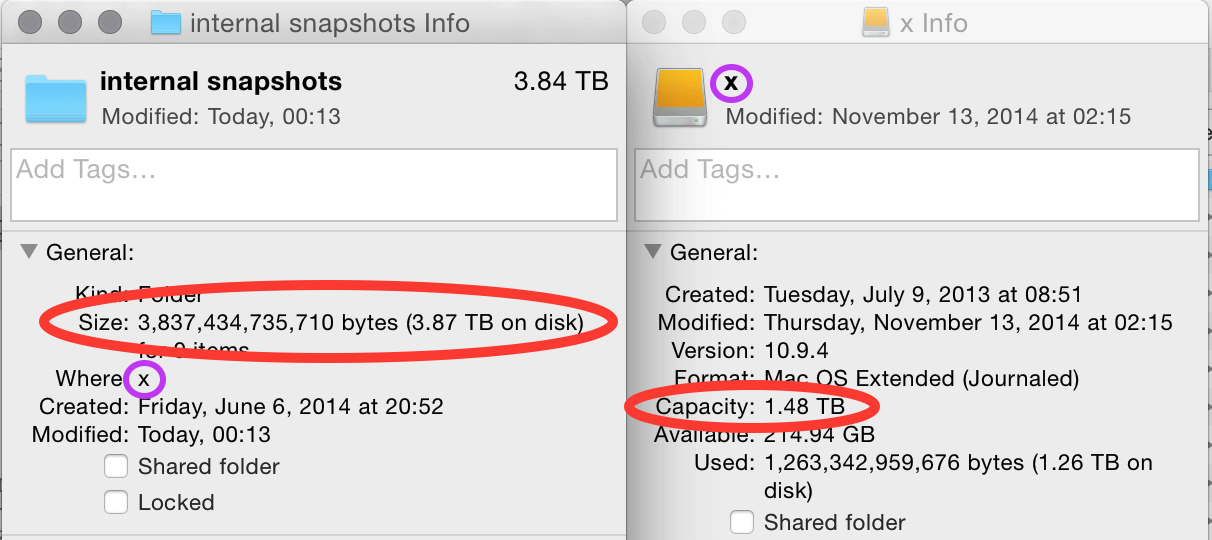
Tip: Only the newest completed snapshot has to stick around. Prune older snapshots manually or set the retention count so Mac Backup Guru deletes the oldest copies automatically after each run.
Share your setup, source drives, and any gotchas. We’ll help you tune the schedule, snapshot retention, or cloning strategy.